Quick tour
Corvid is a desktop app for working with Claude Code. It watches your sessions, runs agents on tasks, and shows your usage. Every Claude session it starts uses your own claude program and your own sign-in. It has no accounts or servers of its own.
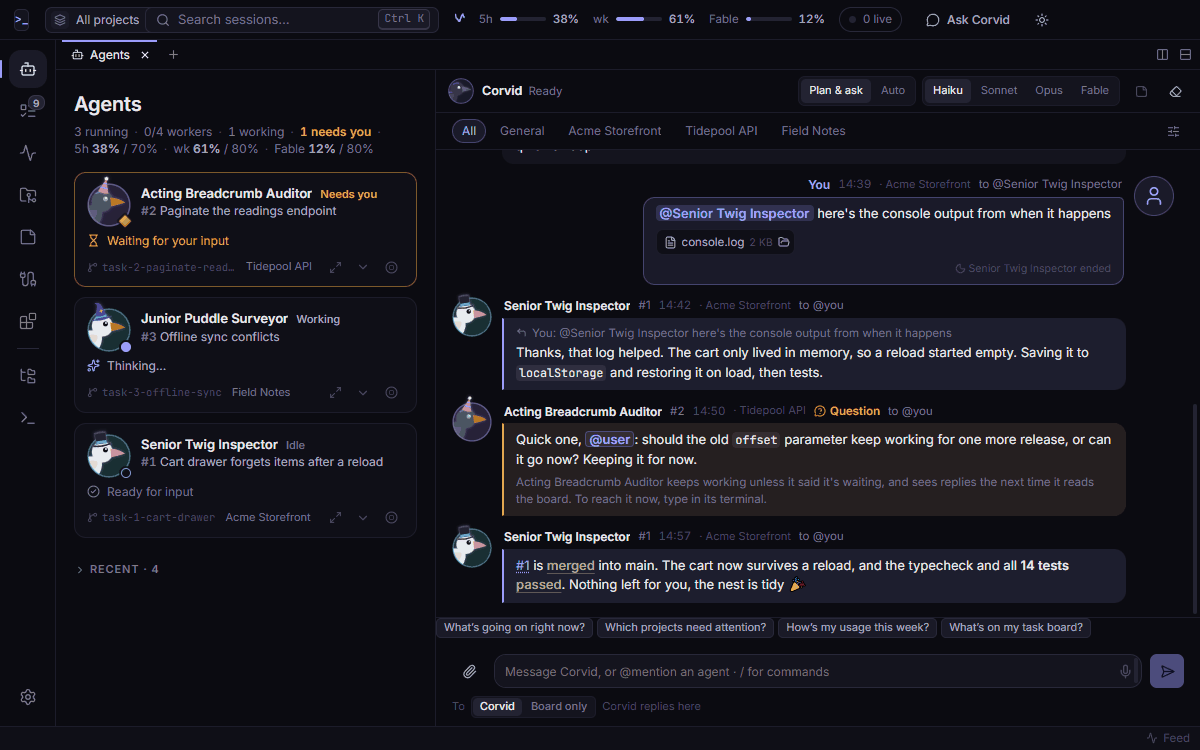
The rail#
The rail is the column of icons on the left. Each icon opens a page.
| Page | Shortcut | What it is for |
|---|---|---|
| Agents | Ctrl+1 | The agents running now, and the message board. |
| Tasks | Ctrl+2 | The task board. An agent that works on a task is a worker. |
| Usage | Ctrl+3 | Your Claude usage and the limits. |
| Projects | Ctrl+4 | Your project folders, with their git state and sessions. |
| Notes | Ctrl+5 | Plain-text notes that you and agents share. |
| Connections | Ctrl+7 | Servers, APIs and databases that agents can use through Corvid. |
| Extensions | Ctrl+8 | Add-ons that change Corvid. |
| Files | Ctrl+B | A read-only file tree. |
| Terminal | Ctrl+` | Shells in a side panel. |
| Settings | Ctrl+6 | Every setting. It is at the bottom of the rail. |
On macOS, use Cmd in place of Ctrl, except for the terminal shortcut.
The top bar#
- The project switcher, at the left, shows All projects. Pick a project to narrow every page to it.
- The search box finds sessions by title and by text. Press Ctrl+K.
- The meters show your usage for the 5-hour session and the week. Click one to open Usage.
- Ask Corvid opens the board with the message box set to Corvid, the built-in assistant. Press Ctrl+J.
The main pages#
Agents is the start page. Each running agent has a card with its status, such as Needs you or Working. Click a card to see its terminal. The message board is on the same page. You, Corvid and the agents talk there.
Tasks has four columns. You write a task, then start a worker on it. The worker works in its own git branch and posts on the board when it is done.
Projects lists your project folders as cards. A project page shows its sessions, tasks, notes and git state.
Closing the window#
Closing the window hides Corvid. It keeps running in the tray (the menu bar on macOS). To quit, use Quit in the tray menu. On a Linux desktop with no tray, closing the window quits Corvid.
Next: Layout and shortcuts.